About half an hour, once. After that TradeRecall runs beside your platform, and you trade the way you always do.
1Install and the first start
Download the package for your computer from the download page. On Windows, TradeRecall is signed, so Windows shows who made it; until enough people have downloaded it, Windows may still ask once whether you trust it. On a Mac, the package is signed and verified by Apple, so TradeRecall opens like any other app. The steps below show where to click. You do this once; after that TradeRecall updates itself.
Mac
Apple silicon (M1 or newer), macOS 13 or later. Not sure which chip your Mac has? Apple menu › About This Mac says Chip: Apple M… — Macs with an Intel chip do not run TradeRecall.
Open the downloaded file and drag TradeRecall onto Applications.
Open TradeRecall from Applications. It opens like any other app.
The first time you record, macOS asks about the microphone — press Allow.
Windows
Windows 10 or 11, 64-bit. Most PCs take the x64 package; the ARM package is for Windows laptops with a Snapdragon chip. Trade in Parallels on a Mac? Download the Mac app on your Mac instead — it connects to Sierra Chart and NinjaTrader inside Parallels by itself.
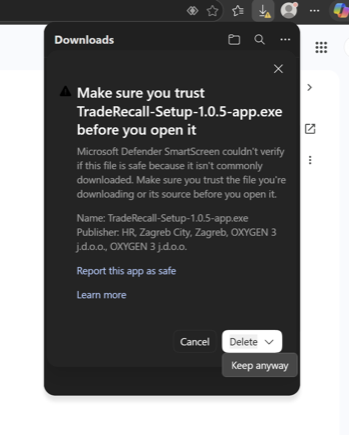
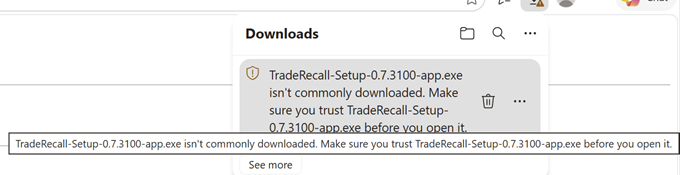
If your browser says the file isn't commonly downloaded, keep it — do not delete it. In Edge: press the arrow next to Delete (or ⋯) › Keep › Show more › Keep anyway. While Edge checks the file — and until you press Keep if it asks — your Downloads folder can show it as "Unconfirmed ….crdownload". It is the same file: wait a moment, or press Ctrl+J and choose Keep.
Run the downloaded installer. If Windows says Windows protected your PC, press More info, then Run anyway.
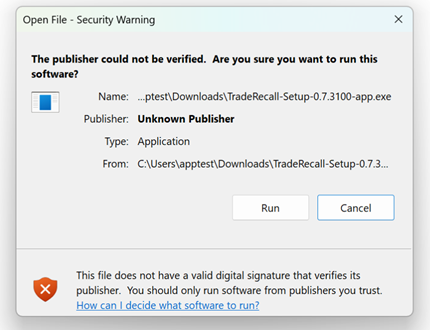
If Windows shows Open File – Security Warning instead, press Run.
Choose your language under Language, then press Install. No administrator password is needed; it installs for you only.
When it is done, press Open TradeRecall.
If Windows 11 blocks the installer with no Run anyway button, Smart App Control is on — write to support at traderecall.app and we will help.
The pictures show an earlier installer's file name; yours carries the version you downloaded.
The first start
Choose your language: TradeRecall offers your computer's language when it has it, and English otherwise. Pick yours and press Continue. On Windows the installer has already asked, so this step is skipped. You can change the language later in Settings › Preferences.
Setting up opens next. It offers the speech model and the language model that fit your computer, and says how much it will download before it starts. Press Continue and let it finish. If you close it or the connection drops, what arrived is kept and the download continues the next time.
If Setting up stops: Settings › Voice & AI lists what is still missing and has a Download button.
Everything runs on your computer. Nothing you record, write or trade leaves it.
2The trial and your licence
Your licence key comes by email when you ask for the download. The 30-day trial starts on the day your first trade lands in the journal — not before. No card. The title bar counts the days left; click it to open Settings › Licence.
After the trial
A licence is then needed for the automatic part: live collection from Sierra Chart and NinjaTrader, voice recording and transcription, the local AI and live chart snapshots.
Always included, with or without a licence: everything you have recorded, notes and typed journal entries, setups and mistakes on your trades, file import, the journal, Reports, export and backup. Nothing is deleted or hidden.
Buy and activate
Buy on the pricing page, or press Buy in Licence. Your licence key comes by email, and it is also in your account.
In Settings › Licence, paste the key into Licence key and press Activate. This needs the internet once. Afterwards the licence works offline, and TradeRecall renews it by itself.
Two computers
One licence runs on 2 computers at the same time — a Mac and a PC, or a desktop and a laptop.
Moving to a new computer: on the old one press Deactivate this computer, then activate the new one.
Old computer gone, or TradeRecall says the licence is already active on 2 computers? Press Manage computers. It opens your account on this site: sign in with the code we email you, deactivate the computer you no longer use, and activate again.
Removing TradeRecall
Uninstalling TradeRecall does not touch your journal or the downloaded models — they stay on your disk.
Before you uninstall, take TradeRecall out of Sierra Chart: removing the program leaves its studies on your charts, and the uninstaller cannot take them off. In every chartbook that has the Journaling Bridge Manager:
Open the Manager's settings: Analysis › Studies, pick Journaling Bridge Manager, press Settings. Empty Snapshot Charts, set every Snapshot Route … - Chart to 0 and press OK. Within a few seconds the Manager takes its workers off those charts.
On the Manager's own chart, remove both studies: Journaling Bridge Manager and Journaling Bridge Worker. If you remove only the Manager, the worker stays behind on its own.
File › Save.
Already uninstalled? While Sierra still loads the study, the same steps work. If the study file is gone, Sierra shows the Manager as an error. Then remove every Journaling Bridge Worker from each chart by hand, and the Manager and the worker on the Manager's chart.
In NinjaTrader: Tools › Remove NinjaScript Assembly…, pick TradeRecall and press Remove. Do not delete the add-on file yourself, or NinjaTrader can fail to start.
3Connect Sierra Chart or NinjaTrader
This is the step that makes TradeRecall work on its own: once it is done, every execution arrives in the journal by itself.
TradeRecall does by itself
Finds every Sierra Chart installation on the computer — inside Parallels too — and puts the study and the collector into each.
Says on each card the one step that comes next, and turns a step green once it is done.
Saves the NinjaTrader add-on where NinjaTrader can import it — on a Mac, straight into Windows in Parallels.
Tells simulated trades from live ones, and checks every step by what it produced, not by a tick in a box.
You do once
Choose the spool folder.
Sierra Chart: switch on its DTC server and add one study to a chart.
NinjaTrader: import the add-on.
Map each trading account to a portfolio.
Sierra Chart
Open Settings › Data & Sync. Under Spool Folder press Use suggested: one press makes the folder, on Windows and on a Mac.
Sierra Chart has to be version 2941 or newer. In Sierra: Help › Download Current Version, and let it restart.
Switch on Sierra's DTC server: Global Settings › Sierra Chart Server Settings › Enable DTC Protocol Server, with Allow Trading. TradeRecall only listens through it — it never places an order.
In Connect Sierra press Put the study into every Sierra on this computer. Then close Sierra Chart and start it again, so it loads the study.
In Sierra, on the chart you trade: Analysis › Studies › Add Custom Study › JournalingBridge › Journaling Bridge Manager › Add › OK, then File › Save. Trade from more than one chart, or want to see every setting? How do I…? › Set up the study in Sierra Chart.
On Windows, back in Data & Sync, press Start the collector — Sierra Chart does not start it for you. On a Mac with Sierra Chart in Parallels this happens by itself.
Back in Data & Sync the steps turn green within seconds. If Sierra's DTC server asks for a password, press Enter password: TradeRecall keeps it for the collector.
Open TradeRecall before you trade, and keep it open while you trade.
Stuck? The card in Data & Sync always names the next step, and How do I…? › A trade did not arrive goes through what to check when a trade does not arrive.
NinjaTrader 8
In Data & Sync choose the spool folder as above, then press Save the add-on to Documents.
In NinjaTrader: Tools › Import › NinjaScript…, pick the file from the TradeRecall folder in Documents and press Import. Answer Yes when it asks to trust the add-on — it may ask once more after the restart — and restart NinjaTrader when it asks.
Back in Data & Sync press Point NinjaTrader here. Keep NinjaTrader open while you trade: the add-on records only while it runs.
Map your accounts
As soon as your platform reports an account, it appears in Settings › Accounts under Accounts Seen by Adapters. Press Map and choose the portfolio its trades belong to. Until then its trades do not reach the journal — this is the step people forget. With no portfolio yet, the list offers My trading: TradeRecall makes that portfolio for you.
Leave Simulation account off for every account at a broker or a prop firm, evaluation and funded accounts included: they count as live. TradeRecall files a trade as simulation by itself when your platform simulated it.
Give each account its opening balance with Balance… in the “…” menu on its row, and record deposits and withdrawals the same way.
4Mac with Parallels
Sierra Chart and NinjaTrader run on Windows. On a Mac they run in Windows under Parallels, and TradeRecall on the Mac sets up the connection into it. You do not install anything in Windows by hand.
Keep Windows running in Parallels while you go through the setup — with Windows shut down the Mac sees neither Sierra Chart nor NinjaTrader. Newer Parallels shows Windows' disks only in Finder › Network › the name of your Windows machine, and the Mac sees them only once you have opened them there: open it there once before you start.
In Parallels' settings for your Windows machine, share your Mac's Home folder with Windows, and let the Mac see Windows' disks. If one of them is missing, the Sierra Chart and NinjaTrader cards in Data & Sync say which.
Under Spool Folder press Use suggested. If you choose a folder yourself, keep it inside your Mac's home folder — Windows in Parallels cannot reach one anywhere else.
Put the study into every Sierra on this computer finds the Sierra Chart installations inside Parallels by itself. If Sierra's DTC server asks for a password, enter it in TradeRecall on the Mac — you do not type anything in Windows.
Save the add-on to Documents puts the NinjaTrader add-on straight into the Documents folder of Windows in Parallels. Import it in NinjaTrader as described above.
During Setting up TradeRecall takes into account the memory your Windows machine needs, and chooses a model that leaves it that memory.
Windows in full screen can take the keyboard before the Mac sees it. In Settings › Voice & AI press Grant access…, so the voice shortcut still reaches TradeRecall.
5Before your first trade
A few settings decide whether the numbers you see later are the numbers you can trust.
In Settings › Accounts
Leave Simulation account off in each account's mapping for every account at a broker or a prop firm — evaluation and funded accounts included. They count as live. Switch it on only for an account you want kept apart from your live results.
Give each account its opening balance with Balance… in the “…” menu on its row, and record deposits and withdrawals the same way, so the equity curve shows what the account is really worth.
Trading a prop-firm account? Add its rule under Trailing Drawdown › Add Rule. The Trailing Drawdown report then shows how much room is left under the firm's rule.
Add a rule under Account & Instrument Costs › Add Cost Rule for the all-in cost of one round trip — entry and exit — on what you trade, so net results are net.
Importing a CSV
Bringing in a Sierra Chart Trade Activity Log or a NinjaTrader executions file? Trades › Import opens the wizard; check Source timezone before you finish. Sierra's export writes UTC and the field already defaults to it, but it follows Sierra's own setting on your machine, so confirm it matches.
6Your first prep and voice note
Before the session: the prep
Open Trading Plan and press New premarket prep. Speak or type what you expect from the session — or press Import… for a PDF, photo or screenshot of a prep you already wrote.
Press Interpret. The local model reads out the instrument, your forecast and the levels; correct anything it got wrong. Press Commit to make it the plan for the day. From then on the journal checks what you traded against it.
During the session: speak
When you enter, manage or exit a trade — or decide not to take one — press ⌥⌘J on a Mac or Win+Shift+J on Windows and say, in a sentence or two, what you see and why you act. Press the same keys again to stop. The keys work while Sierra Chart or NinjaTrader is in front.
Rather type? ⌥⌘N on a Mac or Win+Shift+N on Windows opens Type a Memo. What you type becomes the same kind of journal entry, tied to the same trade.
After the session open Journal. Your note is there beside the trade it belongs to, with the setups and mistakes it heard, for you to confirm or discard.
The habit that makes it work: one short sentence at every entry and every exit. Ten seconds each.
7Help
Hold ⌥ Option on a Mac or Alt on Windows and point at any button or field. The Help panel says what it does and why it may be empty or greyed out.
How do I…? at the bottom of the sidebar lists every task step by step.
Send us a report from Settings › Feedback & Support — you see everything before it goes — or write to support at traderecall.app.